
Audience overview
Contacts, statuses, and how Peleka organizes your audience without lists.
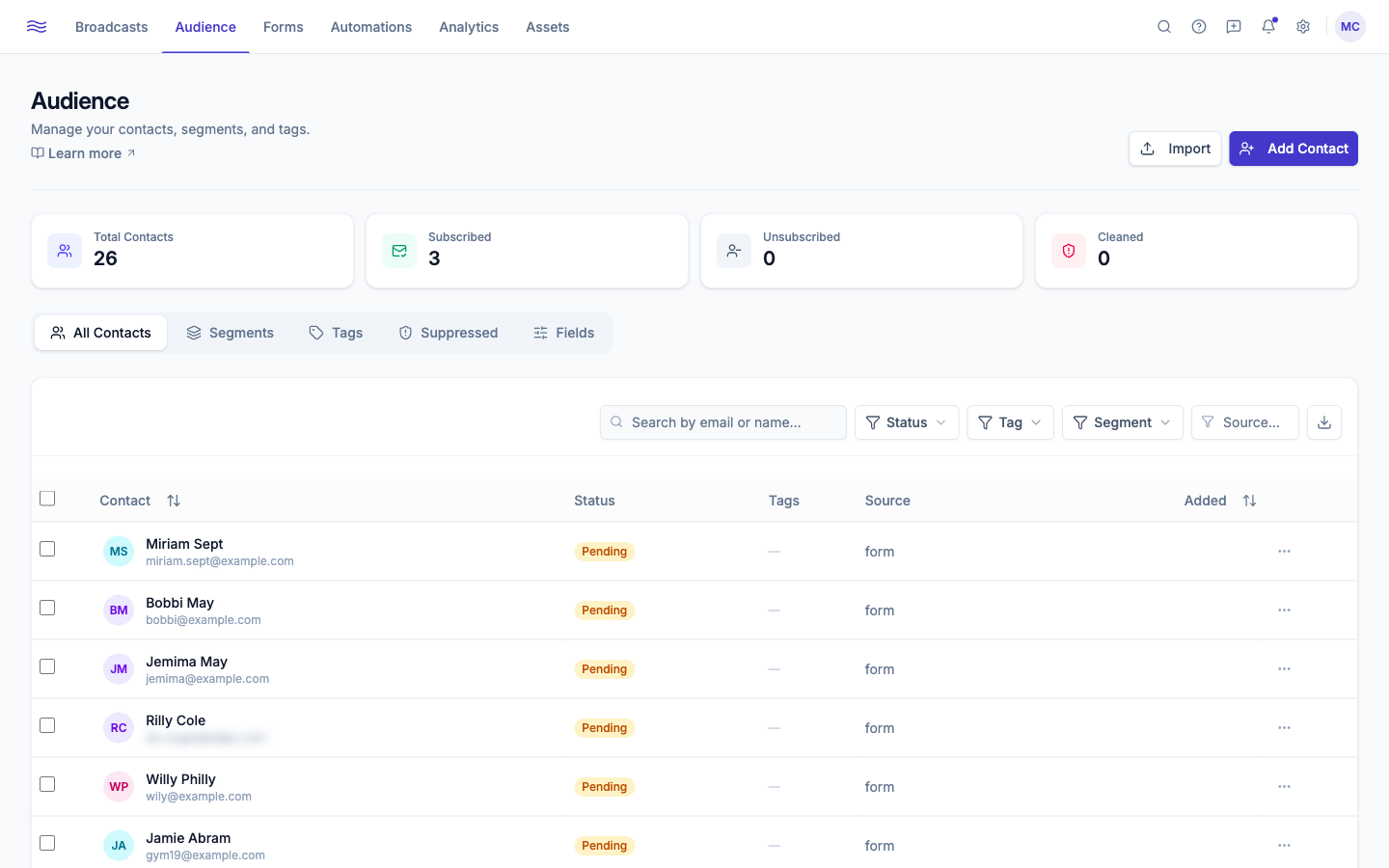
Audience is where every contact you've ever collected lives, organized across five tabs: All Contacts, Segments, Tags, Suppressed, and Fields.
No "lists": tags and segments instead
Unlike some email tools, Peleka doesn't use a lists model. Every contact belongs to one workspace-wide audience, and you carve it up two ways:
- Tags: simple labels (name + color) you apply manually or via automation, e.g.
vip,webinar-attendee. - Segments: saved filters. Static segments are a fixed, manually curated set of contacts; dynamic segments are rule-based and re-evaluate automatically as contacts' data changes (a contact newly matching the rules triggers a
segment_addedevent, which can itself kick off an automation).
Contact statuses
| Status | Meaning |
|---|---|
pending | Submitted a double opt-in form, hasn't confirmed yet |
subscribed | Actively opted in and receiving marketing email |
unsubscribed | Opted out; never emailed again unless they resubscribe |
bounced | A hard bounce was recorded; automatically suppressed |
complained | Marked your email as spam; automatically suppressed |
cleaned | Removed by ongoing list hygiene |
The four stat cards at the top of Audience (Total Contacts, Subscribed, Unsubscribed, Cleaned) give you a running snapshot of where your list stands.
The All Contacts list
The contact table has a toolbar for narrowing it down, all applied server-side so it stays fast on large lists:
- Search by email or name.
- Status filter: subscribed, unsubscribed, cleaned, bounced, complained, or pending.
- Tag filter: pick a tag (each shows its contact count).
- Segment filter: pick a static or dynamic segment.
- Source filter: free-text, exact match against how the contact was added (e.g.
Manual entry, a form name, an import).
Filters combine (AND), and a Clear link resets them. The footer shows "Showing X to Y of Z contacts" for the current filter, a page-size selector, and page navigation. The download button exports the current page as CSV; for a full export, pull contacts through the API.
Adding contacts
Two ways in: click Import for a CSV (see Importing contacts), or Add Contact to create one manually via a form (email, name, timezone, any custom fields you've defined, plus tags). Both require the member role or higher.