
Building a journey
The canvas, journey settings, and turning an automation on.
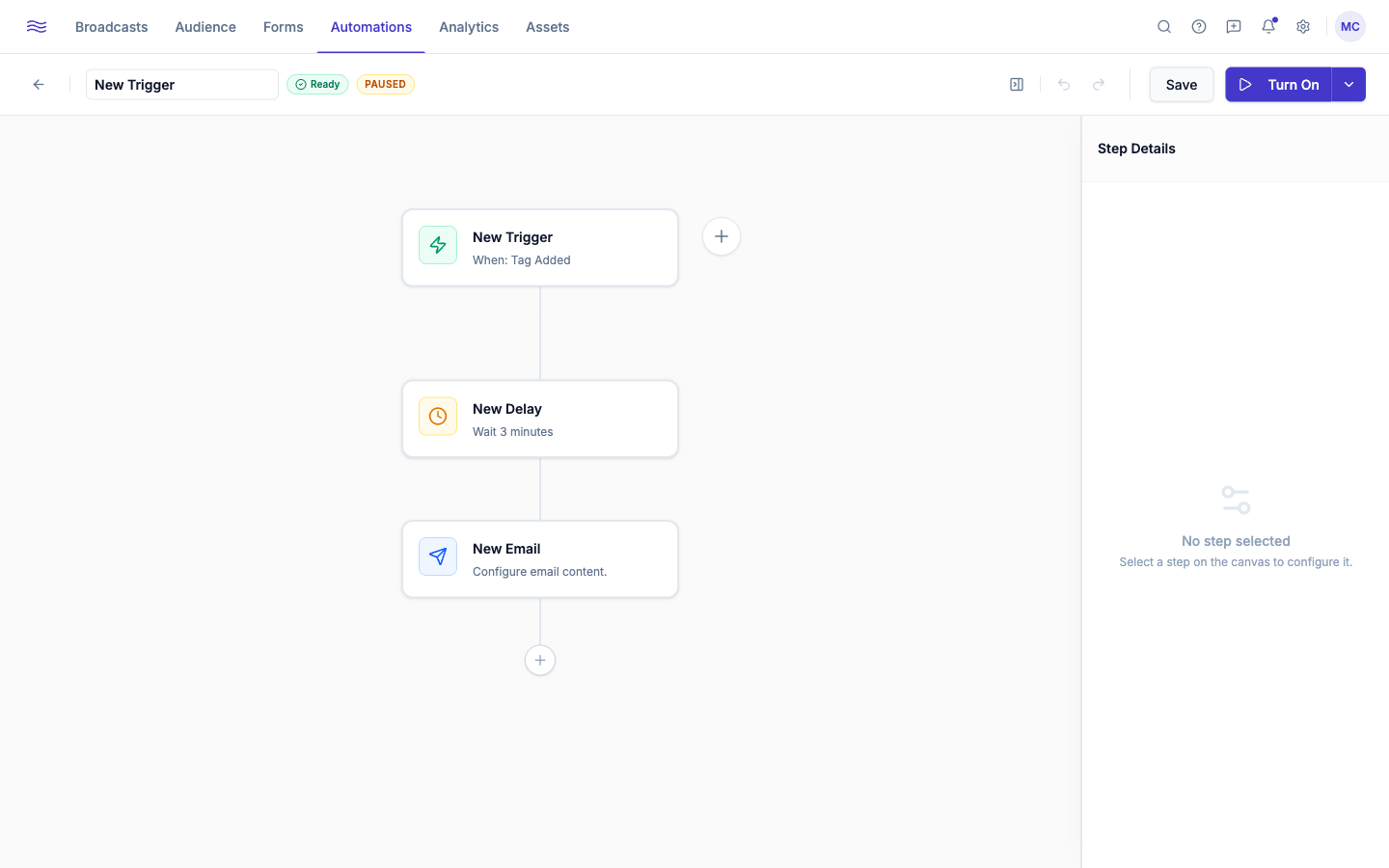
Every journey starts with a Trigger node (always first, shown in emerald with a lightning bolt) and grows from there by connecting additional nodes.
The canvas header
- Editable journey name
- A readiness badge: either "Ready" or "N steps need attention" if something's misconfigured
- Status badge (Draft / Active / Paused)
- Undo / Redo
- Save
- A split Turn On / Pause Journey button, with a dropdown for Journey Settings and Discard Changes
Editing a live journey
If you change a node in a journey that already has contacts actively moving through it, Peleka warns you before saving: "This change affects active contacts." You can still save; just know existing contacts will follow the new logic from wherever they currently are.
Journey settings
Open Journey Settings from the header dropdown to configure:
- Timezone: used to interpret any time-based logic in the journey.
- Re-enrollment policy:
Never(default),Always, orOnly after completion. Choosing anything but Never reveals a wait time before repeating (an amount plus Hour(s)/Day(s)/Week(s)). - Exclude subscribers: pick one or more segments whose members should never enter this journey, shown as removable pills.
Adding and configuring nodes
Click the + button on a branch to open the Add Next Step popover (it reads Insert Step when you're adding between two existing nodes), then pick a node type; it attaches to the flow automatically. Click any node to open its configuration panel in the right sidebar; the exact fields depend on the node type (see Triggers & actions for the full reference). Nodes with incomplete configuration show a red "Needs setup" badge right on the canvas, and roll up into the "N steps need attention" badge in the header.
Each node card supports duplicate (except the trigger) and delete from a hover menu.
Turning it on
Once every node shows as configured, click Turn On. If the change affects contacts already mid-journey, you'll see the active-enrollment warning above; confirm with Save anyway to proceed. Use Pause Journey at any time to stop new enrollments without losing your build; contacts already inside stay put until you resume.
Reading the results
Open View Report on any journey to see:
- Stat cards: Total Enrolled, Completed Journey, Currently Active, Failed / Errored
- A Step Funnel chart showing where subscribers drop off
- Exit Reasons breakdown
- Email Step Performance: open/click/unsubscribe rate for each email in the flow
- A read-only rendering of the journey's canvas