
Creating a broadcast
Step by step, from picking a starting point to selecting an audience.
Every broadcast goes through the same three-step builder: 1. Design Email → 2. Setup Sender → 3. Select Audience. A pill-style stepper at the top of the builder tracks your progress, and you can jump back to any completed step at any time.
One thing has to happen first
You can't open Step 3: Select Audience until you've filled in a subject line in Step 2. Peleka will show a toast ("Fill in the subject line before selecting an audience") if you try to skip ahead.
Start from a template or a blank canvas
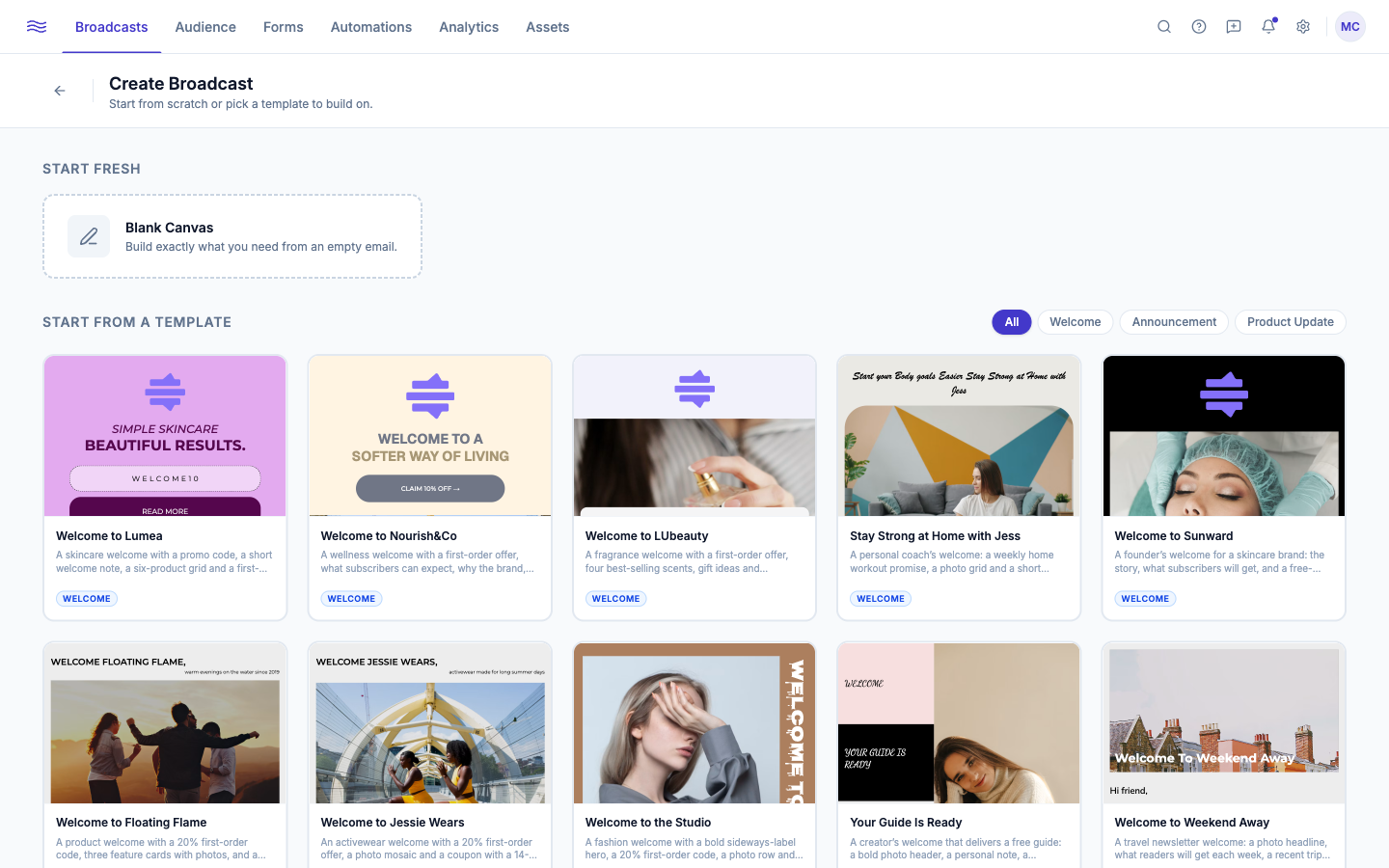
Click Create Broadcast from the Campaigns list to open the picker:
- Start fresh → Blank Canvas: opens a "Name your broadcast" dialog first, then drops you straight into the editor.
- Start from a template: a filterable gallery of built-in templates (Standard Newsletter, Hero Sale Promo, Product Grid, Welcome Email, Split Feature, Testimonial Quote, Minimal Promo, The Magazine, Art Gallery, Music Event, Beauty & Wellness, Event Invitation), filterable by category: All, Newsletter, Promotion, Welcome, Feature, Events, Lifestyle. Hover a card to Preview (with a Desktop/Mobile toggle) or Use Template.
Step 1: Design Email
Build your email on the block canvas. See The email builder for the full block and layout reference. You can send yourself a test at any point with Send Test, and your work autosaves via Save Draft.
Step 2: Setup Sender
This is where the message itself gets configured:
- Subject Line (required): supports personalization via the 🏷 Personalize button, which inserts merge tags like
{{first_name | default:"there"}}. You must set a fallback value before the tag can be inserted, so a broadcast never sends with a literal blank. - A/B Test Subject Lines (optional checkbox): reveals a second subject line field and a Test Audience Split slider (10–100%). At less than 100%, Peleka sends both variants to that percentage of your audience, waits, then automatically sends the remainder the higher-performing variant (measured by opens, tie-broken by clicks) after a few hours.
- Preview Text: the snippet shown next to the subject line in most inboxes, also personalizable.
- Sender Profile: From Name and Reply-to Email. If you've saved sender profiles, you can pick one instead of typing it every time.
Step 3: Select Audience
Choose who receives this broadcast:
- All Contacts: your entire active subscriber list.
- Segments: target by behavior or properties. The picker splits results into 🛍️ Smart Segments · Shopify (auto-generated, see Connecting your store) and Manual Segments.
- Tags: send to contacts carrying one or more specific tags, via a searchable tag combobox.
If your workspace has email categories configured, an optional Email Category dropdown appears. Contacts who opted out of that category are skipped automatically at send time, even if they're still subscribed overall.
The estimated reach count updates live as you refine your audience. From here you also choose when it sends: see Scheduling & sending.
Once everything's set, the primary button reads Send Broadcast (or Continue, if you're not on the last step yet). Sending, like every action that reaches a real inbox, requires the editor role or higher, and a fully completed onboarding checklist.