
The email builder
Blocks, pro layouts, and the email canvas shared by broadcasts, automations, and templates.
The same block-based email canvas powers broadcasts, the email step inside automations, and standalone templates. Learn it once and it works everywhere.
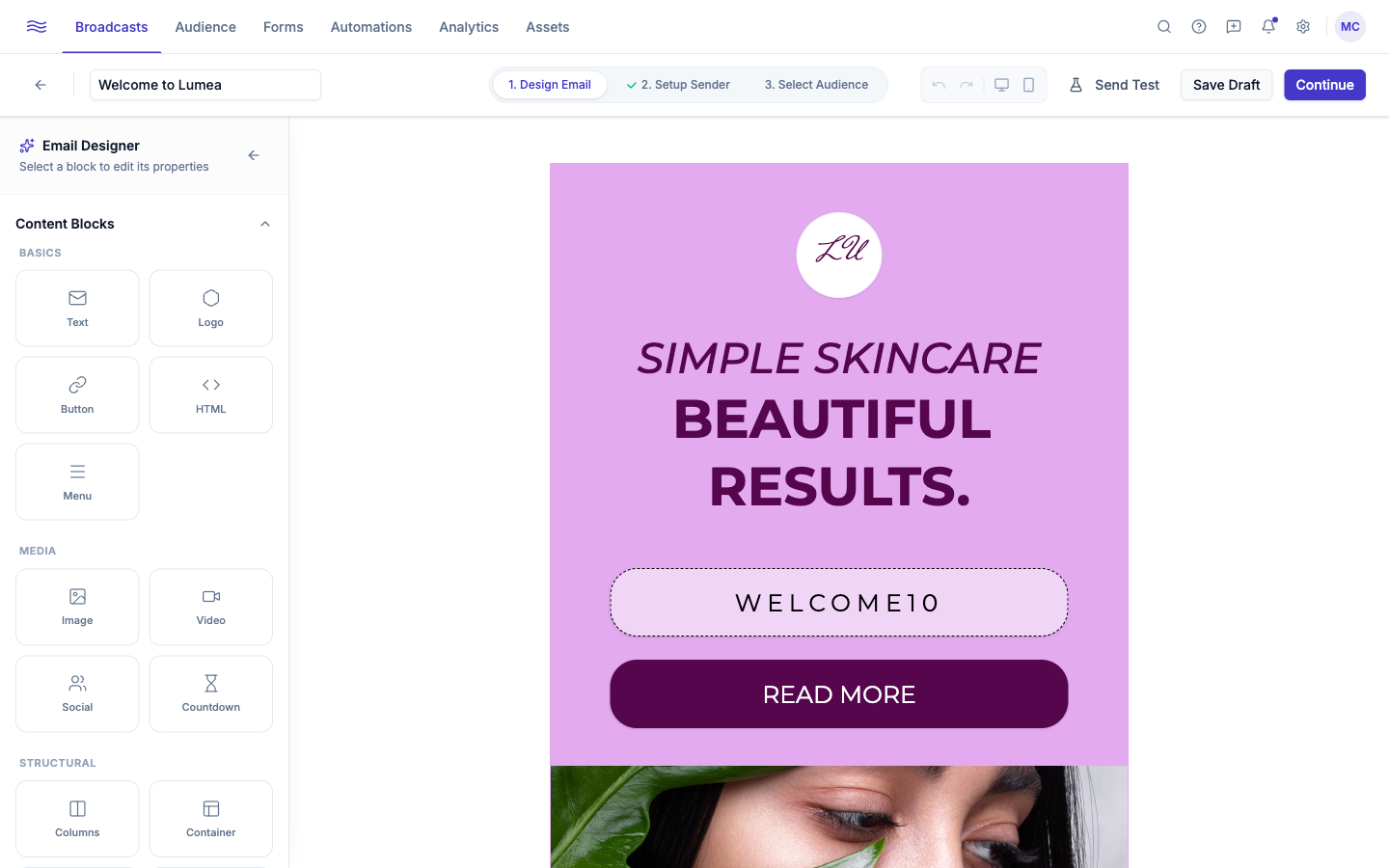
Content blocks
The left sidebar's block palette is grouped into four categories:
| Group | Blocks |
|---|---|
| Basics | Text, Logo, Button, HTML, Menu |
| Media | Image, Video, Social, Countdown |
| Structural | Columns, Section, Divider, Spacer |
| Commerce | Product |
Click any block in the palette to add it to the canvas. There's no drag-and-drop; use the inline + menu to insert a block at a specific spot, and a selected block's action bar to move it up or down.
The Product block pulls a live title, price, image, and URL from your connected Shopify or WooCommerce catalog. Pick a product and the block stays up to date rather than embedding a static snapshot.
The Countdown block renders a live, timezone-aware countdown timer (handy for flash sales) that keeps counting down for each recipient individually, not just at send time.
Pro layouts
Instead of building a section block by block, click Browse Gallery (or Layouts in the inline + menu) to open the searchable, paginated Layout Gallery: pre-styled full sections you can insert wholesale and then customize. The current set is Hero Banner, Quote, Magazine, Card, Product Grid, Sage Feature, Burgundy Split, News Editorial, Promo Countdown, Video Promo, Vision Board, and Elegant Sale, plus three art-directed Premium layouts: Editorial Feature, Spotlight, and Handwritten Intro.
Layouts are served from Peleka's backend, so the gallery stays in sync everywhere it appears (the builder and the MCP assistant) without waiting on a dashboard release.
'Locked design' layouts
If a layout shows a Locked design badge in the gallery, inserting it produces a protected section: its settings panel only exposes the specific fields the design allows you to change (a headline, a button's label and link, one or two colors), and the structure and styling stay fixed. You can still delete the whole section if you don't want it. Layouts without the badge insert as ordinary, fully editable blocks.
The Handwritten Intro layout uses a script font email clients can't reliably load, so Peleka flattens the whole composition to a single static image when the email is sent (and in test sends) rather than depending on each recipient's client to render the font.
Editing a block
Click any block on the canvas to select it. A small action bar appears with controls to duplicate it, move it up or down, or delete it, and a settings panel opens for block-specific styling (colors, spacing, alignment, links, and so on).
Toolbar
- Undo / Redo
- Desktop / Mobile preview toggle: check how your layout reflows before you send
- Send Test: a popover to email yourself (or a teammate) a live test send
- Save Draft
Personalization
Text fields throughout the builder (subject, preview text, body copy) support merge tags in the form {{field}} or, with a fallback, {{field | default:"fallback text"}}. Recognized fields: first_name, last_name, email, company, workspace_name, and subscribed_at (the date the contact subscribed, shown like "12 March 2026" in their timezone; blank if they never subscribed, so give it a fallback). Two special tags, {{unsubscribe_url}} and {{manage_preferences_url}}, are filled in automatically at send time; you don't need to (and shouldn't) hardcode unsubscribe links yourself.
Unrecognized tags are left alone
If you type a merge tag Peleka doesn't recognize, it's left in the email as-is rather than being blanked out, so a typo shows up as visible text, not a silent gap.